
Parents get the report.Skill by skill, in plain words.
After a tryout or an evaluation in Athlio: Dugout, each family receives a progress report about their own player: what was scored, how it compares to the group, what changed since last time, and what to work on. You choose what it includes. They never see another player’s numbers.
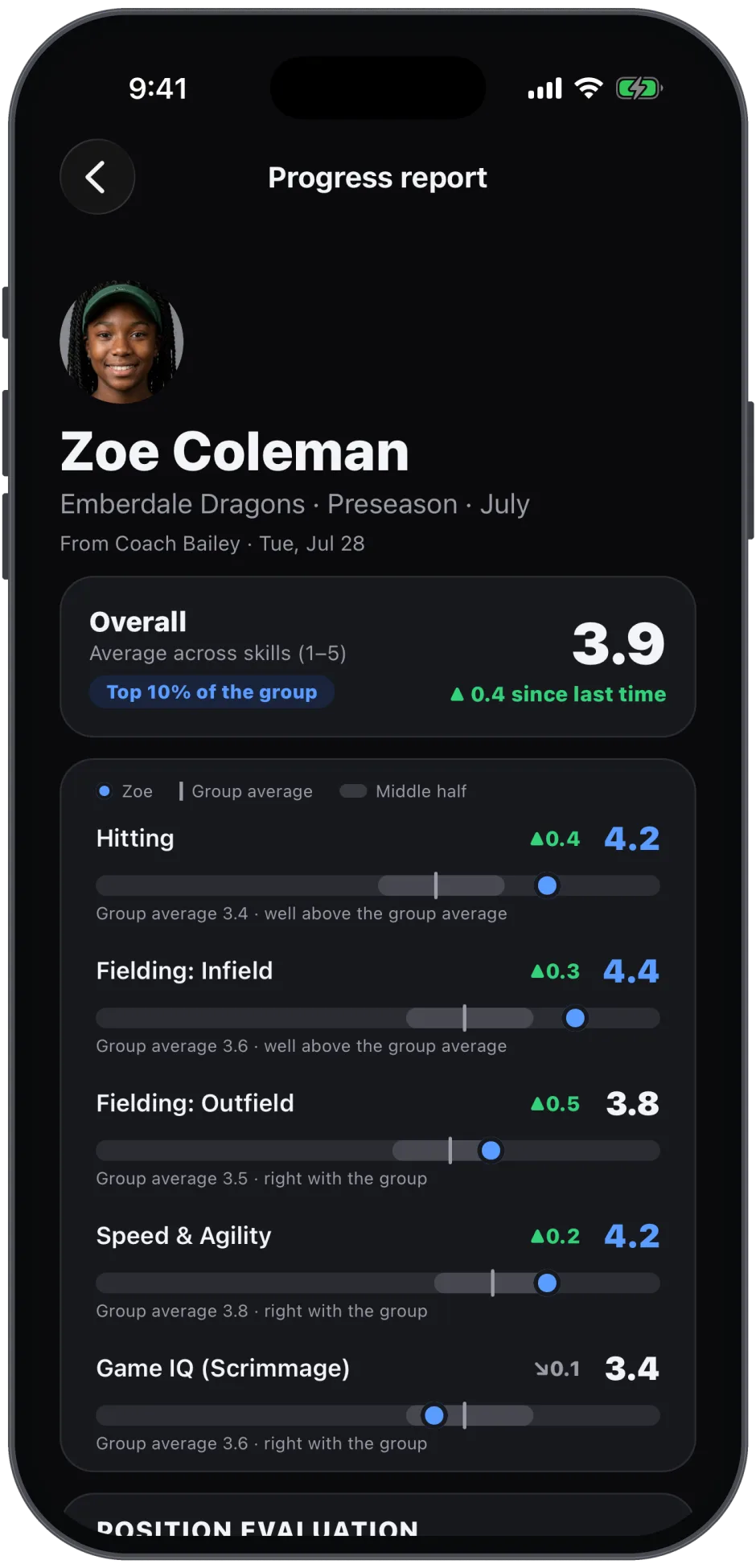
Their player. The group average. Last time.
A report starts with the player’s overall score and the change since the last window, then goes skill by skill: every skill scored, plotted against the group average, so a parent sees where their player stands without seeing anyone else’s name or number. Work on names the two or three skills that most need practice. Your comments to the family, if you wrote any, close the report.
Reports are written in the words a parent uses, not a scout’s. A 3 is a 3, labelled. The what-to-look-for cue under each skill explains what the coaches were watching for, so the number comes with its meaning.
Rankings and notes never leave the dugout.
The Decision Board
The ranked board, position ranks and station coverage are the staff’s. A family sees a decision and their own report, never the list.
Other players
No other player’s scores, names or ranks appear in a report. The group average is the only group number.
Staff notes
A note on a player is for your staff. Comments to the family are a separate field you write on purpose.
Who can read it
The report link goes to the family that signed the player up. Signed in at athlioapp.com, a parent sees their own players’ reports and nothing else.
Review every email before it goes.
From a tryout’s Decision Board or an evaluation’s Send step, Email all lights up once every player has a decision. Turn on Player reports and choose what every report includes: skill scores, group comparison, change since last time, work on, notes and comments. Tap Review & Send to read the email as the family will, then Send. On the web, each family’s email is readable in full before it goes.
Replies reach the coach who sent it. Families who turned off tryout emails are skipped and their row says so; every email carries a Manage emails link.
Report questions coaches and parents ask.
What is in a player progress report?
What you choose to include: skill scores (1 to 5 on each skill), the group comparison (the player against the group average), the change since last time, what to work on, and any notes or comments you write for the family. You pick the parts before you send.
Do parents see other players’ scores or the rankings?
No. A family sees their own player against the group average and against that player’s last window. The Decision Board, the ranking and your staff’s notes stay with the staff.
How do families receive the report?
By email, with a link to the report on the web, and in the app if they have it. Every email carries a Manage emails link, and a family who turned off tryout emails is skipped; their row on your board says so.
Can I send the decision without a report?
Yes. Decisions (Offer, Call back, Cut) are free to send. Player reports are part of Coach Pro; turn Player reports on in the Send step when you want them included.
Can I re-send a report?
Re-send appears on a player’s row when the decision changed after it went out. Otherwise ask the family to search their mail for Athlio and check spam; the report link in the email still opens.
What does a parent need to read it?
The email. The report opens on the web on any phone or computer. Parents who sign in at athlioapp.com see every report for their player in one place, with the team schedule.
Where the report comes from.
Send a report every parent can read.
Free to start. iPhone, iPad and Android.